
I'm unable to delete an image within the Manage Library area.
The "Manage Library" tab is used to quickly upload multiple images and other files into the library. Once uploaded, these files are available to use in the content editor.
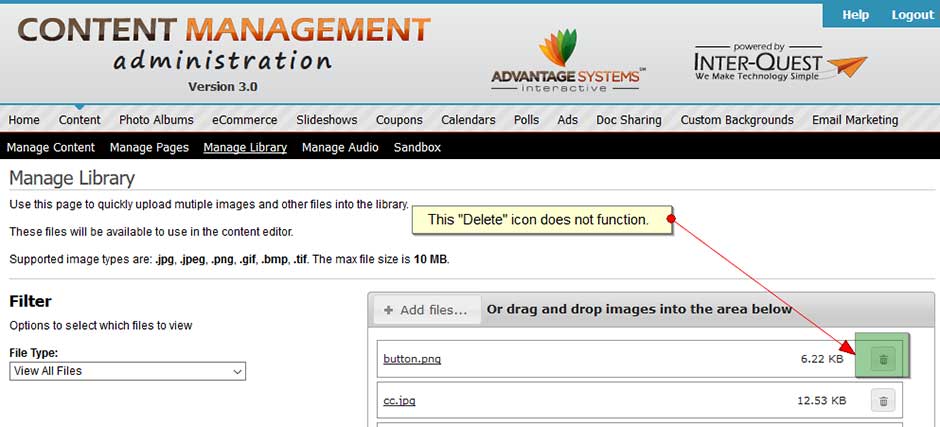
There is a "Delete" icon to the right of every uploaded image.
Unfortunately, the deleting files using this icon does not work. We do have another option for you to remove unwanted files.
Recommended Fix:
You do have the option to remove unwanted files within your website using the html editor (the tool you use to add/edit the content on the website pages). Please use the directions below to delete an unwanted image.
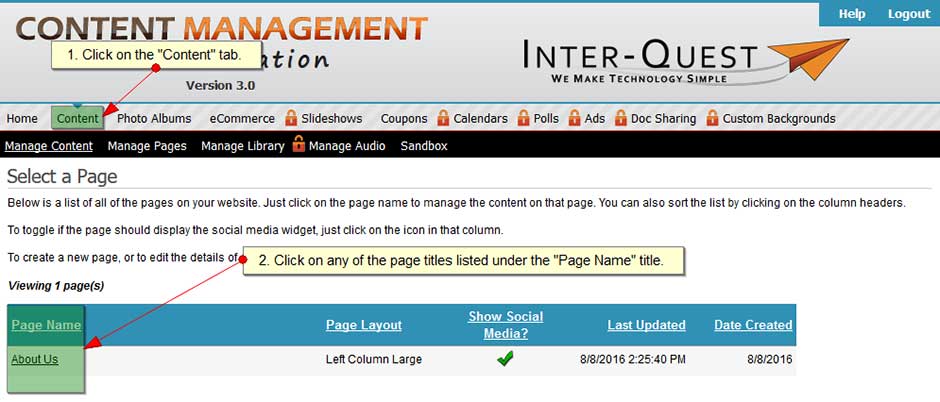
- Click on the "Content" tab.
- Click on any of the page titles listed under the "Page Name" title.
- Click on the "Edit" icon.
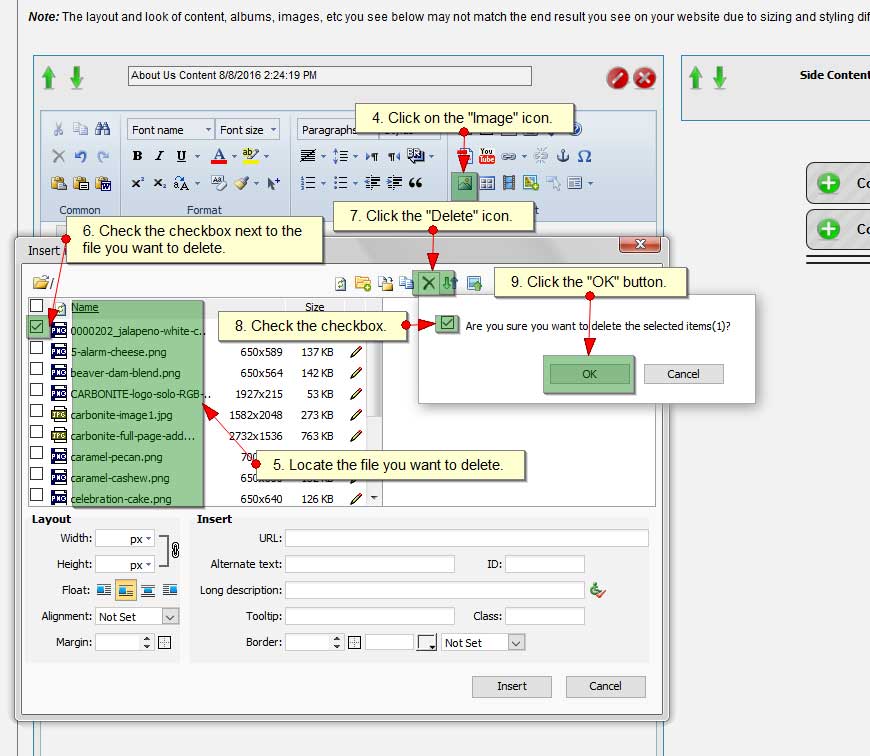
- Click on the "Image" icon.
- A popup box will appear. Within the popup, under the column labeled "Name" locate the image you want to delete.
*Tip - If you are unsure what the name of the image is, you can click on the name of the file in question.
Once clicked, the image should appear to the right.
- Check the checkbox to the left of the image you want to delete.
- Click on the "Delete" icon.
- Check the checkbox next to the phrase "Are you sure you want to delete the selected items(#)"?
- Click the "OK" button.
I could still use additional help.
Please fill out the form below.
Items in bold are required.